

Network Drive: What It Is, Benefits & How It Works
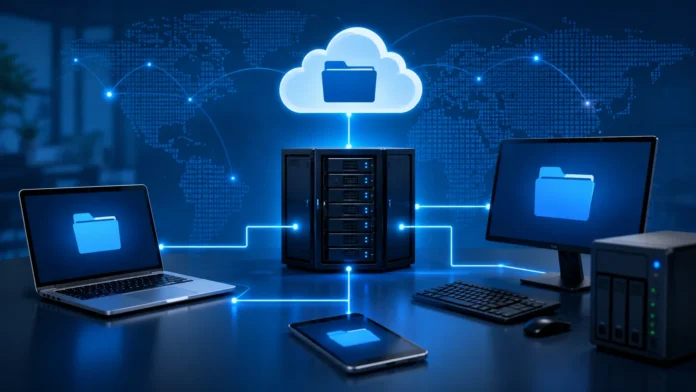
A network drive is a storage location that users access through a computer network rather than from a hard drive physically installed inside their own device. It can hold documents, spreadsheets, images, project files, databases, backups, and other information that multiple authorized users may need to reach. Businesses commonly use network drives to centralize files so employees do not have to maintain separate copies on individual computers. The storage might be located on a dedicated file server, network-attached storage device, or another system connected to the organization’s network. To the user, a mapped network drive can appear almost like an ordinary local disk. Behind the scenes, however, files travel across the network whenever they are opened, saved, copied, or modified.
Network drives remain useful even as cloud storage and collaboration platforms become more common because organizations often need centralized storage with direct control over infrastructure, permissions, and performance. A company may use shared network folders for departmental files, project resources, media libraries, backups, or applications that depend on traditional file-system access. Home users can also create network storage for photos, videos, documents, and backups that several computers can reach. The experience depends heavily on network speed, server reliability, security settings, and access permissions. Understanding those components makes network storage easier to manage and troubleshoot. This guide explains what a network drive is, how network drives work, their benefits and limitations, security considerations, common storage types, and best practices for reliable access.
What Is a Network Drive?
A network drive is storage made available to computers and users through a network connection. Unlike a local drive, which is physically attached to or installed inside one computer, a network drive resides on another device or centralized storage system. That system may be a file server in an office, a network-attached storage appliance, or infrastructure running inside a data center. Users connect through network protocols that allow their operating systems to request files and folders remotely. Once connected, the storage may appear in the file manager alongside local drives. This familiar presentation makes shared storage easier to use because employees can work with remote files using ordinary open, save, copy, and move actions.
The term “network drive” can describe either the remote storage itself or a mapped connection pointing to a shared location. For example, an organization may create a shared folder for its finance department and assign employees a drive letter or named location that opens that folder. The employees do not necessarily need to know which physical disk stores the information. Their computers simply send requests to the server whenever files are needed. This abstraction allows administrators to move or expand underlying storage without requiring every employee to understand the infrastructure. Central management is one of the primary reasons businesses prefer network storage over keeping important shared documents only on individual computers.
Network drives often contain shared folders organized according to department, project, customer, location, or another business structure. One area might contain marketing assets, while another stores accounting records that only finance employees can access. Permissions determine who can view, edit, create, or delete information within each location. Administrators can therefore provide broad access to general resources while limiting confidential files to smaller groups. This is considerably more manageable than manually copying documents to every employee who needs them. A well-designed network drive creates one controlled location where teams can find information according to predictable folder structures and access rules.
Home users can benefit from network drives as well. A network-attached storage device can provide a central location for family photos, videos, scanned documents, computer backups, and media libraries. Several laptops, desktops, televisions, or other compatible devices may be able to access the same storage over the home network. This avoids keeping identical copies of large files on every computer and can simplify backup organization. Some devices also provide remote-access features, although enabling access from outside the home requires additional security consideration. The underlying idea remains the same whether the network serves five family devices or thousands of business computers: storage is centralized and reached across a network.
A network drive should not be confused with the internet itself or with every form of cloud storage. Traditional network drives are often accessed through a local corporate or home network, although remote employees may connect through secure remote-access technologies. Cloud file services can offer similar user experiences while storing information in provider-operated infrastructure instead. Some modern environments combine both approaches, maintaining network file servers for particular workloads while using cloud collaboration platforms for others. Understanding where the data actually lives helps determine availability, security responsibilities, performance, and backup requirements. The interface may look similar, but the infrastructure and management model can be very different.
How Does a Network Drive Work?
A network drive works by allowing one system to share storage resources and another system to request access through a network. The storage server manages the actual files, folders, permissions, and disk space, while the user’s computer acts as a client. When someone opens a document, the client sends a request across the network to the server. The server checks whether that user has permission and then sends the requested data back. Editing and saving produces additional network communication as changed information returns to the centralized storage. This client-server relationship allows many users to work with the same storage system without requiring the underlying drives to be installed in their individual computers.
File-sharing protocols provide the technical rules that make communication possible. Windows-oriented environments commonly use SMB for shared files and folders, while other platforms may support technologies such as NFS for network file access. The protocol defines how systems request directories, open files, apply permissions, lock files, and perform other operations across the network. Users usually do not need to understand these details because the operating system handles the connection automatically after configuration. Administrators, however, need to choose secure and compatible protocol versions. Outdated file-sharing technologies can introduce unnecessary security risks, while incompatible configurations may cause connection or performance problems.
Authentication determines who is attempting to access a network drive. In a business environment, users may sign in with organizational accounts that are managed centrally through a directory or identity system. When they connect to a shared drive, the server can evaluate their identity and group memberships before deciding which folders are available. This prevents every person connected to the network from automatically seeing every file. Home network devices may use simpler usernames and passwords, although the same principle applies. Strong authentication is critical because centralized storage can contain information belonging to many people. Compromising one highly privileged account could provide far broader access than compromising a single isolated local file.
Authorization determines what an authenticated user is actually allowed to do. A marketing employee might receive read and write access to campaign folders while having no access to payroll records. Another user may be able to view a shared reference library but not modify or delete anything. Permissions can be assigned to individuals, but group-based access is usually easier to manage in larger organizations. When an employee changes roles, administrators can update group membership instead of manually editing hundreds of folder permissions. Good authorization design reduces accidental deletion, inappropriate access, and uncontrolled sharing while making collaboration easier for people who legitimately need the information.
Network performance affects the experience because every remote file operation depends partly on the connection between the user and storage server. A small spreadsheet may open almost instantly on a fast local network, while a large video project can require considerably more bandwidth. Wireless congestion, slow remote connections, overloaded servers, or damaged network equipment can make a network drive appear unresponsive even when the storage itself is functioning correctly. Latency also matters because applications performing many small file operations may feel slower across distant connections. Network storage therefore works best when infrastructure is designed around the actual size, frequency, and location of file activity rather than simply providing enough raw disk capacity.
Types of Network Drives and Network Storage
A traditional file server is one of the most common sources of network drives in business environments. The server runs an operating system configured to provide shared folders to authorized users across the network. Administrators can control storage capacity, folder structures, permissions, backups, auditing, and integration with organizational identity systems. File servers can use local disks, attached storage arrays, or virtualized storage depending on infrastructure design. They are particularly useful when organizations need detailed access control or applications that expect conventional file-system paths. The tradeoff is that the business must maintain server availability, security updates, hardware, backups, and disaster recovery unless those responsibilities are outsourced.
Network-attached storage, commonly called NAS, is another popular option. A NAS device is designed primarily to provide shared storage over a network rather than functioning as a general-purpose application server. Small NAS systems are popular in homes and small businesses, while enterprise models can provide substantial capacity and advanced management features. Many offer RAID options, snapshots, user permissions, backups, media services, and integration with common file-sharing protocols. Their focused design can make network storage easier to deploy than building a traditional server from scratch. However, a NAS should still be treated as important infrastructure requiring updates, secure configuration, monitoring, and independent backups rather than being assumed to protect itself automatically.
Storage area networks, or SANs, operate differently from ordinary shared network folders. A SAN provides block-level storage to servers, allowing remote storage resources to behave more like directly attached disks from the server’s perspective. These systems are common in enterprise environments supporting virtualization, databases, large applications, and workloads requiring high performance or centralized storage management. End users typically do not connect directly to the SAN as they would map a departmental file share. Instead, application or file servers use SAN storage and then present services to users. Although SAN and NAS technologies both centralize storage, they solve different problems and should not be treated as interchangeable terms.
Cloud-based file storage can provide network-drive-like access without requiring the organization to operate all underlying physical storage itself. Some cloud services expose shared file systems that servers or employees can connect to through supported protocols. Other cloud collaboration products use synchronization clients that make remote files appear inside desktop folders rather than as traditional mapped network drives. The distinction matters because synchronization, version history, offline access, and concurrent editing may behave differently from conventional file-server access. Cloud storage can make distributed work easier, but organizations should understand internet dependency, provider availability, data governance, access control, and cost before replacing established network drives.
Hybrid storage combines local and cloud technologies to address different business requirements. Frequently accessed files may remain close to users for fast performance while older information is archived to less expensive cloud storage. Other systems synchronize selected network folders with remote storage for disaster recovery or distributed access. A company may also maintain traditional file shares for specialized applications while moving collaborative documents into cloud platforms. Hybrid designs can provide flexibility but create additional management complexity because administrators must understand where authoritative copies reside. Clear policies prevent users from creating conflicting versions across multiple storage systems. Choosing the right network storage model depends on performance, security, cost, collaboration, and availability requirements.
Benefits of Using a Network Drive
Centralized file storage is one of the biggest benefits of a network drive. Instead of employees keeping important documents only on individual laptops, teams can place shared information in a location managed by the organization. This makes files easier to discover and reduces dependence on one particular employee’s computer. If that device is lost, damaged, or replaced, the shared information remains available from the central storage system. Centralization also allows administrators to apply consistent backup and security policies. Businesses can therefore manage critical documents as organizational assets rather than scattered personal copies whose locations may become impossible to track.
Network drives can improve collaboration by giving multiple authorized users access to shared folders. Teams can organize project files in predictable locations rather than repeatedly sending large attachments through email. A project manager can create a folder for specifications, presentations, budgets, and deliverables while assigning access to relevant employees. Everyone works from the same central location, reducing the chance that important information disappears into personal folders. Traditional network drives do not automatically provide real-time coauthoring like some cloud collaboration systems, so teams still need sensible file practices. Even so, centralized sharing can substantially simplify collaboration for workloads based on conventional documents and files.
Central permissions provide another major business advantage. Administrators can define which departments or teams can access each network location without configuring every individual computer separately. Sensitive HR, finance, legal, or executive information can be restricted while general resources remain widely available. When employees join or leave a department, their access can change through centralized identity and group management. This is both more efficient and more secure than distributing password-protected copies across multiple devices. Access controls can also help organizations demonstrate that confidential information is available only to users with legitimate business needs.
Backup becomes easier when important information is stored centrally. Instead of trying to protect files scattered across hundreds of employee computers, backup systems can concentrate on managed storage locations. Administrators can use scheduled backups, snapshots, replication, off-site copies, or other strategies appropriate to the organization’s recovery objectives. Central backup does not eliminate the need to protect endpoints, because employees may still create temporary or local files. However, encouraging important work to reside on managed storage reduces the amount of critical information that depends solely on individual devices. Centralized recovery can also make accidental deletion or hardware failure easier to address when properly designed backups are available.
Network drives can reduce unnecessary storage duplication and improve resource utilization. Large design files, installation packages, reference libraries, or departmental archives do not need to be copied to every computer when users can access them centrally. Organizations can expand shared storage capacity independently from endpoint replacement cycles, making infrastructure planning more flexible. High-performance centralized systems can also provide better reliability than inexpensive local disks when designed properly. These advantages become stronger when organizations combine central storage with clear file organization and lifecycle policies. A network drive that becomes an unmanaged dumping ground can still create inefficiency, so centralization should be accompanied by governance.
How to Map and Access a Network Drive
Mapping a network drive means creating a convenient connection between a computer and a shared network location. Instead of typing the full server path every time, users can access the share through a drive letter, shortcut, mounted location, or named folder depending on the operating system. Organizations often configure these connections automatically for employees using centralized management tools. For example, members of a finance group may receive a finance drive when they sign in, while marketing employees receive a different set of shared locations. Automated mapping reduces configuration mistakes and helps new employees access the resources appropriate to their roles without manually creating each connection.
Before a network drive can be accessed, the computer usually needs a working path to the storage server. Inside an office, this often means being connected to the company’s wired or wireless network. Remote users may need an approved secure connection before internal file shares become reachable. If the computer cannot contact the server, the mapped drive may appear disconnected even when username and password information is correct. This is why troubleshooting should begin with basic network connectivity rather than immediately assuming the file server has failed. Remote connectivity design becomes particularly important as organizations support employees working from homes, hotels, and other external locations.
Credentials are another part of network drive access. In centrally managed business environments, a user’s normal sign-in credentials may automatically authenticate against the file server. Other systems may request a separate username and password when the connection is created. Administrators should avoid shared accounts whenever individual identities can be used because shared credentials make auditing and access removal more difficult. Saving passwords insecurely can also create unnecessary risk. Ideally, authentication should integrate with the organization’s identity-management practices so permissions can be changed quickly when employment status or job responsibilities change.
Mapped network drives can reconnect automatically when a user signs in, but several factors may prevent this behavior. The computer may attempt to reconnect before a remote network connection is fully established, the server may be temporarily unavailable, or the user’s permissions may have changed. A disconnected icon does not always mean the mapping itself has been permanently lost. Re-establishing network connectivity may allow the drive to become available again. Organizations with distributed workforces may choose newer file-access approaches when traditional mapped drives repeatedly perform poorly across remote links. Technology should match the way employees actually work rather than preserving an old access model purely because it is familiar.
Users should understand that a mapped network drive is not automatically an offline copy. If the server or network becomes unavailable, files may become inaccessible unless an offline synchronization feature has been configured. This differs from certain cloud storage applications that intentionally cache local copies and synchronize changes later. Employees working during unreliable connectivity should know which behavior their organization supports before depending on a shared drive during travel. Saving critical work locally without an approved synchronization process can create version conflicts and backup gaps. Clear user guidance prevents confusion about where files actually reside and what happens when connectivity disappears.
Network Drive Security and Permissions
Network drive security begins with limiting access according to business need. Users should receive permission to the folders required for their work rather than broad access to the entire storage system. This principle reduces exposure if an account is compromised and prevents employees from accidentally viewing or modifying unrelated confidential information. Group-based permissions make access easier to administer at scale because people can be assigned according to department or role. Administrators should review groups periodically rather than assuming old memberships remain correct forever. Employees who transfer between teams may otherwise accumulate permissions over time, creating access that no longer has a legitimate purpose.
Authentication should be protected using strong account-security controls. Weak passwords can expose centralized storage because one compromised account may give an attacker access to numerous shared files. Multifactor authentication can strengthen remote-access systems and identity platforms where supported, although implementation depends on the architecture used to reach the network drive. Organizations should also disable accounts promptly when employees leave. Dormant credentials should not remain capable of connecting to internal storage indefinitely. Monitoring unusual sign-ins or large file-access patterns can provide additional visibility into compromised accounts or inappropriate activity.
Encryption helps protect network drive information both while it travels and while it remains stored. Secure modern file-sharing protocols can encrypt network communication so data is more difficult to intercept while moving between users and servers. Storage encryption can protect information if physical disks or equipment are stolen. Encryption does not replace permissions because an authorized system still needs to decrypt files for legitimate users. The strongest approach combines identity controls, authorization, encryption, patching, backups, and monitoring. Security should be layered so one failed protection mechanism does not automatically expose the entire shared storage environment.
Ransomware presents a particularly important risk because malicious software running under an authorized user’s account may be able to encrypt or delete network files that user can modify. Centralized storage can therefore allow ransomware damage to spread beyond one workstation when permissions are overly broad. Organizations can reduce risk through least-privilege access, endpoint protection, segmentation, file-system monitoring, protected backups, and recovery procedures. Snapshots may provide additional recovery options but should not be treated as the only backup strategy. Employees should also be trained to recognize phishing and other common infection methods. Protecting network drives requires both technical controls and strong endpoint security.
Auditing can help organizations understand who accessed important network locations and what actions occurred. Depending on system capabilities, administrators may log access attempts, file changes, permission modifications, or administrative activity. Logging every action across enormous file systems can generate excessive data, so monitoring should focus on meaningful security and compliance needs. Highly sensitive folders may justify stronger auditing than general shared resources. Alerts for unusual mass deletion or modification can provide early warning of ransomware or compromised accounts. Audit logs are most useful when someone actually reviews or analyzes them rather than collecting information indefinitely without a defined purpose.
Network Drive Performance, Troubleshooting and Best Practices
Slow network drives are often blamed on storage hardware when the real problem exists elsewhere in the connection path. Wireless interference, insufficient bandwidth, network congestion, overloaded switches, distant remote connections, server resource limits, or security scanning can all affect performance. Troubleshooting should therefore determine whether every user is slow or only one person has difficulty. If everyone experiences the problem, the server or shared network infrastructure becomes a stronger suspect. If only one device is affected, local connectivity or configuration may be responsible. Testing systematically prevents administrators from replacing storage hardware when the actual bottleneck is a weak Wi-Fi signal.
Large files require particular planning because copying video, design projects, backups, or virtual-machine images across a network can consume substantial bandwidth. A network drive that works perfectly for office documents may perform poorly when dozens of employees edit multi-gigabyte media files simultaneously. Businesses should evaluate workload size and concurrency before choosing network speed and storage architecture. High-performance applications may benefit from faster Ethernet, specialized storage systems, local caching, or workflows designed specifically for large media. Remote editing creates additional challenges because internet upload speed and latency may become limiting factors. Infrastructure should be sized according to real workloads rather than simply the number of employees.
Reliable backups are a fundamental network drive best practice. RAID or redundant disks can improve hardware availability, but they do not replace backups because they cannot necessarily recover files deleted accidentally, encrypted by ransomware, or damaged by application errors. Organizations should maintain recovery copies appropriate to the importance of their data and keep at least some protection isolated from ordinary user access. Backup jobs should be monitored rather than assumed to succeed indefinitely. Periodic restore testing is equally important because a backup is valuable only when files can actually be recovered. Clear recovery objectives help determine how frequently backups should run and how long versions should be retained.
Folder organization and ownership prevent shared drives from turning into enormous unmanaged archives. Departments should have predictable locations, naming conventions, and responsibility for deciding which information remains useful. Temporary files and obsolete project copies can gradually consume storage and make search difficult if nobody manages them. Retention policies may help remove information after legitimate business and legal requirements have expired. Highly collaborative files may also be better suited to modern collaboration platforms than deeply nested shared folders. Network drives work best when organizations deliberately decide which workloads belong there instead of treating centralized storage as the default destination for every digital object.
Capacity and health monitoring help administrators address problems before users encounter outages. Storage systems should provide enough free space for normal growth, temporary operations, snapshots, and other overhead rather than operating continuously near maximum capacity. Disk failures, network errors, backup problems, unusual latency, and file-system issues should generate alerts where practical. Software and firmware updates also matter because file servers and NAS appliances are attractive targets when exposed through outdated services. Administrators should remove unsupported protocols and disable unnecessary features. A well-maintained network drive should be treated like production infrastructure because many employees may depend on it every working day.
Network Drives vs Local Drives and Cloud Storage
A local drive offers direct storage on an individual computer, which usually provides fast performance and access even when the network is unavailable. This makes local storage useful for operating systems, installed applications, temporary work, and workloads requiring very low latency. The disadvantage is that information can become isolated on one device and may be lost if that computer fails unless backups or synchronization are configured. Collaboration is also more difficult because other users cannot automatically access local files. Network drives solve this centralization problem by moving shared information to infrastructure available to multiple authorized users. Many organizations use both approaches rather than attempting to eliminate local storage completely.
Network drives provide greater centralized control than unmanaged local storage. Administrators can apply permissions, backups, quotas, monitoring, and storage expansion from one managed environment. Employees can change computers without losing access to shared departmental files. However, availability depends on the network and storage server, meaning an outage can affect many people simultaneously. Well-designed infrastructure reduces this risk through redundancy and recovery planning. A local disk failure affects fewer users but may destroy unique information if files were never backed up. The choice therefore involves balancing individual performance with centralized management and shared availability.
Cloud storage offers another model by placing information in infrastructure operated through remote data centers and accessed over the internet or private connectivity. Cloud collaboration platforms often provide version history, browser access, mobile apps, synchronization, sharing controls, and real-time document collaboration that traditional network drives may not offer as naturally. This can make cloud storage particularly effective for distributed teams. Internet dependence becomes more significant, however, and organizations need to understand provider security, data location, retention, costs, and account management. Cloud services also use different pricing models from purchasing local storage infrastructure, shifting some expenses from hardware ownership toward recurring service fees.
Traditional network drives may remain preferable for applications that depend on file-system behavior, local-network performance, legacy software, or large shared datasets located close to users. A manufacturing application, design workflow, or internal business system may expect a familiar file share rather than web-based document storage. Moving these workloads blindly to generic cloud collaboration platforms can create compatibility or performance problems. Conversely, forcing remote teams to connect across slow links to an office file server can produce a poor experience. Storage decisions should be workload-specific. Modern IT environments increasingly use several options simultaneously because different types of information benefit from different access models.
A practical storage strategy defines when users should choose local, network, or cloud locations. Local storage may be appropriate for temporary working data, network drives for controlled internal shared resources, and cloud collaboration platforms for documents requiring remote access and real-time teamwork. The exact rules depend on security and operational requirements. Without guidance, employees may duplicate information across all three locations, creating version confusion and unnecessary risk. Clear policies, training, and technical controls can direct information toward the most appropriate system. The goal is not deciding which storage model is universally best but matching each workload with the environment that manages it most effectively.
Conclusion
A network drive is a centralized storage location accessed through a network rather than a disk physically attached to the user’s computer. It allows employees, family members, applications, or servers to reach shared information from multiple devices while administrators control the underlying storage system. Traditional file servers and NAS appliances are common examples, while certain cloud and hybrid services can provide similar functionality. Users may see the remote storage as an ordinary drive letter or mounted folder even though every file operation travels across the network. This familiar interface makes network drives relatively easy to use while allowing centralized management behind the scenes.
The main benefits of network drives include centralized storage, easier collaboration, consistent permissions, simplified backup, and reduced dependence on individual computers. Businesses can organize departmental and project files in predictable locations instead of allowing critical information to remain scattered across employee devices. Central administration also makes it easier to change access when employees join, transfer, or leave the organization. Network storage can expand independently from individual workstations and can be designed with stronger redundancy than ordinary endpoint disks. These advantages make shared drives especially useful for organizations that manage large amounts of structured file-based information.
Security remains essential because centralized storage can amplify the impact of compromised accounts, ransomware, or inappropriate permissions. Organizations should use strong authentication, least-privilege access, secure file-sharing protocols, encryption, endpoint protection, monitoring, and reliable backups. Employees should not automatically receive access to every shared folder simply because they work for the same company. Administrators should periodically review permissions and remove obsolete access. Network drives should also receive software updates and security maintenance like any other important server infrastructure. Centralization improves control only when the centralized system itself is protected carefully.
Performance depends on more than the speed of the physical disks. Network bandwidth, latency, Wi-Fi quality, server resources, file size, user concurrency, and remote connectivity all influence how quickly shared files open and save. Organizations working with large media files or remote users may require specialized architecture rather than a basic office file server. Monitoring can identify capacity and performance problems before they become disruptive. Reliable backup and tested recovery procedures provide another essential layer of protection. A network drive should be designed around actual user workloads rather than simply providing a large amount of inexpensive storage.
Ultimately, network drives remain valuable because many businesses and homes need one controlled place where multiple devices can access shared files. They are not always the best solution for every workload, particularly when real-time cloud collaboration or extensive remote access is the primary requirement. Local storage, network storage, and cloud platforms each solve different problems, and modern environments often combine them. The best approach is to understand where information should live, who should access it, how quickly it must be available, and how it will be protected. With clear permissions, reliable infrastructure, thoughtful organization, and good backups, a network drive can provide secure and convenient shared storage for years.
Frequently Asked Questions About Network Drives
What is a network drive in simple terms?
A network drive is storage located on another computer, server, or storage device that you access through a network. It can appear like a normal drive or folder on your computer even though the files are stored somewhere else.
What is the difference between a local drive and a network drive?
A local drive is physically installed in or directly connected to your computer, while a network drive is accessed through a network connection. Local drives generally provide direct performance, while network drives make centralized sharing and management easier.
Do you need the internet to use a network drive?
Not always. A traditional network drive inside a home or office can work entirely across the local network without internet access, although remote or cloud-based access may require an internet connection.
Is a network drive secure?
A network drive can be secure when it uses strong authentication, appropriate permissions, modern file-sharing protocols, encryption, updates, monitoring, and reliable backups. Poorly configured shares with excessive permissions can create significant security risks.
What happens if a network drive goes offline?
Users may temporarily lose access to files stored on the drive until the server or network connection is restored. Organizations can reduce disruption through redundant infrastructure, reliable backups, monitoring, and appropriate offline or synchronization options for workloads that require them.