

Pixel Definition: What Pixels Are & How They Work
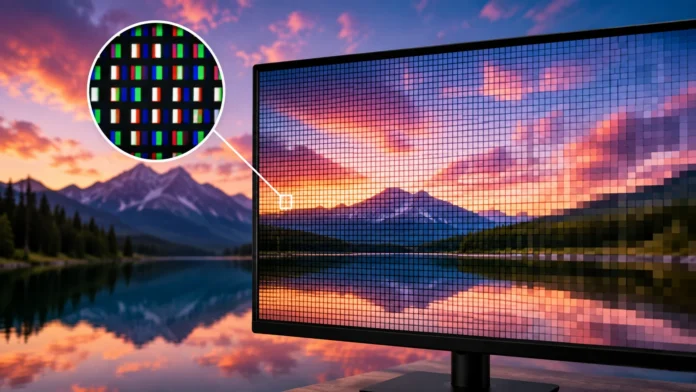
A pixel is the smallest controllable element in a digital image or display, and the word comes from the phrase picture element. Pixels work together in large numbers to create the photographs, videos, icons, text, graphics, and interfaces you see on phones, monitors, televisions, cameras, and other digital devices. A single pixel is usually too small to notice during normal viewing, but millions of pixels arranged in rows and columns can create detailed images. Each pixel stores or displays information about color and brightness, allowing screens and digital files to represent complex visual scenes. Understanding pixels makes concepts such as resolution, megapixels, PPI, image quality, and screen sharpness much easier to understand.
Pixels are important because almost every modern visual technology depends on them in some form. A smartphone display may contain several million pixels, while a digital camera sensor can capture tens of millions of pixel locations in one image. A 4K television uses a much larger pixel grid than a standard HD display, allowing finer detail when screen size and viewing distance make that detail visible. However, more pixels do not automatically guarantee better image quality because color accuracy, sensor size, lens quality, processing, brightness, contrast, and compression also matter. This guide explains the pixel definition, how pixels work, how they create color, how resolution is measured, and how pixels affect displays, cameras, images, and everyday technology.
What Is a Pixel?
A pixel is the smallest individual unit that can be represented within a digital image or addressed on a display. Imagine a photograph made from millions of tiny colored squares arranged tightly together. Each square contributes one small portion of the final picture, and together they create shapes, textures, shadows, highlights, and colors that appear continuous to the human eye. The closer the pixels are packed and the greater the number available, the harder it becomes to distinguish them individually at normal viewing distance. This is why high-resolution screens can make text and images appear smoother and sharper than lower-resolution displays of similar size.
Pixels are organized into a grid containing horizontal rows and vertical columns. A screen resolution of 1920 × 1080, for example, contains 1,920 pixel positions across the width and 1,080 down the height. Multiplying those numbers gives slightly more than two million total pixels. Each pixel can display or store a specific color value depending on the technology involved. The display or software then updates these values repeatedly to create still images, animations, video, and interactive interfaces. The pixel grid itself remains structured even when the visual content changes constantly.
In an image file, a pixel is essentially a data point representing visual information at one location. Depending on the file format and color depth, that data may describe red, green, blue, transparency, brightness, or other channels. When image-editing software zooms in far enough, individual pixels can become visible as block-like squares. This reveals that what appears to be a smooth curve or detailed photograph at normal size is actually constructed from many discrete samples. Digital imagery creates the illusion of continuity because the pixels are small enough and numerous enough for the eye to blend them together.
On a physical display, the word pixel refers to a tiny controllable area capable of producing visible light or changing how light passes through. The exact implementation differs between LCD, OLED, microLED, and other display technologies. Many display pixels contain smaller components called subpixels that generate different color channels. The device controls the intensity of those components to create the desired final color. Hardware pixels and image pixels are closely related concepts, but one refers to the physical display while the other describes the digital information being shown.
The simplest way to remember pixel meaning is to think of it as one tiny building block of a digital picture. One pixel carries very little information by itself, but millions arranged in the correct pattern can reproduce detailed faces, landscapes, text, and graphics. Pixel quantity influences how much spatial detail can be represented, while pixel quality and color information influence how accurately each location appears. Modern visual systems therefore depend on both the number of pixels and how effectively those pixels are controlled.
How Do Pixels Work?
Pixels work by representing a small sample of color and brightness at a specific position within an image. When software displays a photograph, it sends information describing what each pixel should look like. The screen then reproduces those values through its physical display technology. In a simple example, one pixel might display bright red while neighboring pixels display darker red, orange, and black. When viewed together from a normal distance, these differences form part of a larger object or shape. The process happens across millions of pixels simultaneously, creating the complete image visible to the user.
Digital displays refresh their pixel values many times per second. A monitor operating at 60 Hz updates the image up to sixty times each second, while higher-refresh-rate screens can update even more frequently. The pixels change color and brightness according to each new frame sent by the computer or video source. This rapid sequence creates the perception of smooth movement. During gaming, scrolling, or video playback, the image seems continuous even though the display is presenting a series of rapidly changing frames. Pixel response time also affects how quickly individual display elements can transition between values.
Images stored in files do not physically glow, of course. Their pixels exist as numerical information describing visual properties. A photo-editing application reads those values and maps them onto the screen’s physical pixels. If the image resolution does not match the display size, software may scale the picture by estimating new pixel values. Enlarging an image greatly can reveal blockiness or softness because software is stretching limited original information across more screen area. Reducing an image combines information from several pixels into fewer output pixels.
Pixels also work with color depth, which determines how many possible color values can be represented. A very limited image format might support only a small set of colors, while modern displays and image files can represent millions or even billions of possible shades. Greater color depth allows smoother gradients and more subtle differences between neighboring tones. However, file format, display capability, graphics hardware, and software all need to support the additional information for users to see the benefit. Pixel count describes spatial detail, while color depth describes tonal and color precision.
The final appearance of a pixel also depends on context. A single gray pixel surrounded by white can appear darker than the same gray surrounded by black because human vision interprets contrast relative to neighboring areas. Display calibration, brightness, viewing angle, ambient lighting, and screen technology can also influence perception. This explains why the same digital image may look slightly different on two screens even when both have identical resolution. Pixels provide the building blocks, but the complete visual experience depends on the entire display system and viewing environment.
RGB Pixels and Subpixels Explained
Most color displays create images using the RGB color model, which combines red, green, and blue light. A physical pixel commonly contains separate red, green, and blue subpixels that can vary in brightness independently. When all three are off or very dim, the pixel appears dark. When red, green, and blue are illuminated strongly together, the pixel can appear white or close to white depending on calibration. Different intensity combinations produce a wide range of colors. This additive color method is fundamental to televisions, monitors, phones, and many other digital displays.
A red color can be created by increasing the red subpixel while keeping green and blue relatively low. Yellow can be produced by combining strong red and green, while cyan results from green and blue. Magenta combines red and blue. Intermediate shades come from using different brightness levels across all three channels. Because the subpixels are extremely small and positioned close together, the eye usually does not see them individually. Instead, their light blends into one perceived pixel color. This is why a display can reproduce millions of colors using only three primary light components.
Not every display uses exactly the same subpixel layout. Some panels arrange subpixels in traditional red-green-blue stripes, while others use alternative geometric patterns or additional subpixel types. OLED displays may use layouts designed around manufacturing, efficiency, brightness, or longevity considerations. Certain screens also include white subpixels to increase luminance. These differences can influence text rendering, sharpness, and how effective resolution appears at very close viewing distances. Two displays with the same advertised pixel count can therefore have slightly different visual characteristics.
Subpixel rendering has historically been used to make text appear smoother by taking advantage of the individual color components within each physical pixel. Software can manipulate subpixels around the edges of letters to create the impression of finer horizontal detail. This technique works best when the operating system knows the exact subpixel arrangement. Modern high-density screens often reduce the need for aggressive subpixel rendering because the physical pixels are already extremely small. Nevertheless, subpixel structure remains an important part of display engineering.
The concept of RGB pixels also helps explain why digital color does not behave exactly like paint or ink. Mixing red, green, and blue light produces lighter results because more light is being added. Printing typically uses subtractive color systems such as cyan, magenta, yellow, and black, where pigments absorb light instead. A color that looks vivid on an illuminated display may therefore appear different when printed on paper. Understanding pixel color helps users recognize that screens generate color through light rather than through physical pigments.
Pixel Resolution Explained
Resolution describes how many pixels are available across a digital image or display. It is commonly written as width × height, such as 1920 × 1080 or 3840 × 2160. The first number represents horizontal pixels, while the second represents vertical pixels. Multiplying the two values gives the total pixel count. Higher resolution allows more spatial detail to be represented when screen size, image quality, and viewing distance allow users to perceive that difference. Resolution is therefore one of the most important specifications for monitors, televisions, cameras, and digital media.
Full HD, often called 1080p, commonly refers to a resolution of 1920 × 1080 pixels. 4K UHD generally uses 3840 × 2160 pixels, which provides four times the total number of pixels found in Full HD. This larger grid can produce sharper text and finer image detail on appropriate displays. However, resolution benefits become less noticeable as viewing distance increases or screen size decreases. A very high-resolution phone can look incredibly sharp because the display is viewed closely, while the same pixel density may be unnecessary on a television viewed from across a room.
Image resolution and display resolution do not always match. A photograph might contain 6000 × 4000 pixels while being viewed on a 2560 × 1440 monitor. Software scales the larger image down so it fits the available screen area. Conversely, a small image displayed full-screen on a high-resolution monitor must be enlarged. This enlargement cannot create genuine detail that was never captured originally. Software can estimate intermediate pixels, but excessive enlargement can make images appear soft, pixelated, or artificially processed.
Resolution also affects performance because graphics hardware must process more pixels per frame. Rendering a game at 4K requires creating far more pixel information than rendering the same scene at 1080p. This increases GPU workload and can reduce frame rates if hardware capacity is limited. Users therefore balance resolution with visual quality and performance. Higher pixel counts provide potential detail, but smooth animation and graphics settings also influence the experience. The highest available resolution is not always the best operating choice for every workload.
Resolution should not be judged independently from screen size. A 27-inch 4K monitor packs its pixels more tightly than a 55-inch 4K television because both contain the same number of pixels across different physical dimensions. The monitor therefore has higher pixel density. This is why two screens with identical resolution can appear very different in sharpness when viewed from similar distances. Total pixel count tells you how many pixels exist, while pixel density explains how closely they are packed.
Pixel Density, PPI and DPI
Pixel density describes how many pixels fit within a given physical area of a display or digital image representation. The most common screen measurement is PPI, meaning pixels per inch. A higher PPI means pixels are packed more closely together, which can make text, icons, and images appear smoother at a given viewing distance. A small smartphone and a large monitor may have similar resolutions but very different PPI values because their physical dimensions differ dramatically. Pixel density therefore adds important context to resolution specifications.
Suppose two displays both use 1920 × 1080 resolution. If one is a 6-inch device and the other is a 24-inch monitor, the smaller screen places the same number of pixels into a much smaller area. Its pixel density is therefore substantially higher. Individual pixels become more difficult to distinguish on the smaller display. The larger monitor can still look sharp from normal desktop distance, but its physical pixel size is greater. This example demonstrates why resolution alone does not determine perceived sharpness.
DPI means dots per inch and is used primarily in printing rather than describing screen pixels directly. Printers create images using tiny dots of ink or toner, and several printed dots can be used to reproduce one image pixel or color tone. People often use PPI and DPI interchangeably in casual conversation, but they represent different concepts. PPI describes pixel density in digital imagery or displays, while DPI generally describes printer dot density. Keeping the distinction clear helps when preparing images for print.
When preparing a photograph for printing, both pixel dimensions and desired print size matter. A 3000-pixel-wide image printed at 10 inches wide corresponds to 300 pixels per inch. If the same image is printed at 30 inches wide, the effective pixel density drops to 100 PPI. Whether that still looks acceptable depends on viewing distance and image content. Large posters are often viewed from farther away, so they can use lower PPI without appearing obviously pixelated. Small prints viewed closely generally benefit from greater pixel density.
Higher PPI does not improve indefinitely from a practical user perspective. Once pixels become too small to distinguish at the intended viewing distance, adding more can produce diminishing visible returns while increasing graphics workload, storage, or manufacturing complexity. Display designers therefore balance pixel density with brightness, battery life, cost, and processing requirements. The ideal density depends on device type and how close users typically sit. Smartphones, monitors, televisions, and VR headsets all have different practical requirements.
Pixels in Digital Cameras
Digital camera sensors are covered with millions of photosensitive sites that capture light during an exposure. These sites are commonly associated with the image’s pixel count, although the relationship between sensor photosites and final image pixels can involve additional processing. When light reaches the sensor, each site records information that contributes to color and brightness data. The camera processor then converts this information into the final photograph. A camera marketed as 24 megapixels can produce images containing roughly 24 million pixel positions, depending on the exact sensor and output mode.
Megapixel means one million pixels. A 12-megapixel camera produces images containing approximately twelve million pixels, while a 50-megapixel camera can generate much larger image files. More megapixels provide greater potential detail and allow stronger cropping when the lens, focus, lighting, sensor quality, and processing support that resolution. However, megapixel count alone does not determine image quality. A lower-resolution camera with a larger sensor and better optics can outperform a higher-megapixel camera under challenging lighting conditions.
Sensor size matters because it influences how large individual light-sensitive sites can be. Packing many pixels onto a very small sensor means each site may capture less light than a larger site on a physically bigger sensor. Modern processing has improved dramatically, so the relationship is not as simple as “bigger pixels are always better,” but sensor area remains important. Larger sensors can provide advantages in low-light performance, dynamic range, depth of field control, and overall image quality depending on camera design. Megapixel numbers should therefore be interpreted alongside sensor size.
Lens quality is equally important because the sensor can record only the detail delivered by the optics. A 100-megapixel sensor behind a poor lens cannot create genuine fine detail that never reaches the sensor clearly. Focus accuracy, camera movement, diffraction, noise, and atmospheric conditions can also reduce usable resolution. This explains why professional camera evaluations examine complete imaging systems rather than only megapixel specifications. High pixel counts increase potential, but several other parts of the capture process need to support that potential.
Smartphones add another layer through computational photography. A phone may combine information from several frames, use pixel binning, apply sharpening, reduce noise, and blend exposures before creating the final image. Pixel binning groups several sensor sites to produce one output pixel with improved light information under certain conditions. This allows high-resolution sensors to operate differently depending on lighting and camera mode. The final photo may therefore have fewer pixels than the sensor’s headline specification while achieving better image quality for the situation.
Pixels in Monitors, TVs and Smartphones
Monitors use fixed physical pixel grids that determine their native resolution. A 2560 × 1440 monitor contains that number of addressable pixel positions, and images generally look sharpest when content is rendered at or appropriately scaled for the native grid. Running a different resolution can require the display or graphics system to interpolate the image. This can make text and fine graphics appear softer. Modern operating systems use interface scaling so high-resolution monitors can display readable text without reducing the underlying native resolution.
Televisions also contain fixed pixel grids, but viewers sit much farther away than they do from computer monitors. This changes how useful additional resolution becomes. A 4K television can provide significantly more detail than a 1080p model when the screen is large enough and the viewer sits reasonably close. At greater viewing distances, the eye may not distinguish the additional pixels easily. Content quality matters as well because low-resolution or heavily compressed video cannot suddenly become truly detailed simply because it is displayed on a 4K panel.
Smartphones use very high pixel densities because users hold them relatively close to their eyes. High PPI helps keep text smooth, icons crisp, and photographs detailed despite the screen’s small physical size. Phone manufacturers often use resolutions that exceed what would be necessary on a larger television viewed from several meters away. The display controller and operating system scale interface elements so users do not see tiny text simply because more pixels are available. The extra density improves smoothness rather than shrinking everything automatically.
OLED and LCD screens handle pixels differently at the hardware level. LCD pixels control light coming from a backlight, while OLED pixels generate their own light individually. This gives OLED displays strong control over black levels because individual pixels can be turned off completely. LCD technology instead depends on liquid crystals and filtering to block or transmit light from the shared backlight. Both can provide excellent image quality, but their pixel structures and light-generation methods differ. These differences influence contrast, power use, brightness, response time, and longevity.
Dead or stuck pixels are occasional display defects where one pixel or subpixel fails to behave normally. A dead pixel may remain dark because it cannot produce light or transmit the required signal, while a stuck pixel can remain fixed on one color. Modern manufacturing has reduced these problems significantly, but they can still occur. One defective pixel on a high-resolution screen may be difficult to notice at normal distance. Warranty policies can vary according to the number, location, and type of pixel defect.
Pixels, Image Quality and File Size
Higher pixel counts can increase image detail because more individual samples are available to describe the scene. A 6000 × 4000 image can preserve finer patterns than a 1500 × 1000 image when both originate from equally good source material. This allows larger prints and stronger cropping. However, increasing dimensions also increases the amount of information that must be stored or processed. File size generally grows with pixel count, although compression, color depth, file format, and image complexity influence the final amount significantly.
Compression reduces file size by representing image information more efficiently. Formats such as JPEG can discard some visual information to create much smaller files, while lossless formats preserve the original pixel data more accurately. Heavy compression can create visible artifacts around edges or fine textures even when the pixel dimensions remain unchanged. This demonstrates that resolution and file quality are separate characteristics. A heavily compressed 4K image can look worse than a carefully encoded lower-resolution image.
Color depth also affects file size because each pixel requires enough bits to describe its color. An 8-bit grayscale image needs far less information per pixel than a high-bit-depth color image containing multiple channels. Professional photography and video workflows may use higher bit depth because it provides smoother tonal transitions and greater flexibility during editing. The tradeoff is larger files and greater processing demand. Storage planning therefore needs to consider both pixel dimensions and the amount of information stored at every pixel.
Upscaling can increase an image’s pixel dimensions without creating all the genuine detail that would have existed if the scene had originally been captured at that resolution. Traditional scaling algorithms estimate new pixel values from neighboring pixels, while modern AI-based techniques can produce more convincing results by predicting textures and edges. These methods can improve perceived quality, but they are still reconstructing information rather than recovering every lost original detail. Enlarging a tiny blurry image does not magically transform it into a perfectly authentic high-resolution photograph.
Downscaling often works more successfully because multiple source pixels can be combined into fewer output pixels. This can reduce noise and create clean-looking images when done properly. Photographers sometimes capture at high resolution and export smaller files for websites or social media because the reduced version retains plenty of useful detail. The original large file provides flexibility for editing and cropping, while smaller copies load faster online. Pixel count therefore should be matched to the final use rather than maximized without considering performance or storage.
Common Pixel Examples in Everyday Technology
A digital photograph is one of the easiest pixel examples to understand. If a phone captures an image at 4000 × 3000 resolution, the file contains around twelve million pixels. Each pixel records a small part of the scene, and the complete grid reconstructs the visible photograph. Zooming into the image far enough reveals the individual pixel structure. At normal viewing size, those separate squares blend together and appear as smooth skin, sky, buildings, text, or other details. The number of pixels affects how far the photo can be enlarged before individual blocks become noticeable.
Computer icons are also pixel-based. Small icons may contain only a few dozen or hundred pixels along each dimension, so designers carefully shape edges to remain recognizable at tiny sizes. Modern interfaces often use vector graphics for scalability, but the final display still converts those shapes into pixels when rendering them on the screen. Anti-aliasing adjusts edge pixels to create smoother curves. Without this processing, diagonal lines and rounded shapes could look jagged. Everyday interface design therefore depends heavily on how pixel grids represent geometric forms.
Digital video consists of sequences of pixel-based frames displayed rapidly. A 1080p video contains frames measuring around 1920 × 1080 pixels, while 4K video contains substantially more pixels per frame. At 60 frames per second, the system processes enormous amounts of pixel information continuously. Video compression makes storage and streaming practical by reducing redundant information between frames. Without compression, high-resolution video files would become extremely large. Streaming services therefore balance pixel resolution, bitrate, compression efficiency, and network bandwidth.
Gaming renders pixels in real time rather than simply playing stored frames. The graphics processor calculates lighting, textures, geometry, effects, and color values for millions of screen pixels many times every second. Higher resolution increases the number of pixels the GPU must generate, which can reduce frame rate when hardware resources are limited. Techniques such as dynamic resolution and upscaling help balance visual quality with performance. The relationship between pixels and graphics workload is therefore especially important in gaming computers and consoles.
Digital signs, medical displays, dashboards, smartwatches, car infotainment systems, e-readers, and virtual reality headsets all use pixels as visual building blocks. Each device has different priorities involving resolution, brightness, power consumption, viewing distance, and physical size. A smartwatch needs high density in a tiny area, while a roadside digital sign can use much larger pixels because viewers stand far away. The same pixel concept applies across both devices. What changes is the size, density, display technology, and intended viewing environment.
Common Pixel Misconceptions
One common misconception is that more pixels always mean better quality. Higher resolution can provide more detail, but only when the source, lens, sensor, processing, and display support that detail. A noisy 50-megapixel smartphone image can look worse than a clean 24-megapixel photo from a larger camera sensor. Similarly, a 4K screen with poor contrast and inaccurate colors can look less impressive than a high-quality lower-resolution display. Pixel quantity is important, but it is only one part of image quality.
Another misconception is that pixels have one universal physical size. In reality, pixel size varies dramatically between devices. A stadium screen can have very large physical pixels because people view it from far away, while a smartphone contains extremely tiny pixels because it is held close to the face. Resolution tells you the number of pixels, not their physical dimensions. Pixel density or pitch is required to understand how large or closely packed those pixels actually are.
People also confuse PPI and DPI frequently. PPI describes pixels per inch in digital displays or image preparation, while DPI generally refers to printer dots per inch. A printer may use several physical ink dots to represent one image pixel accurately. Treating the terms as identical can create confusion when preparing images for print. The difference becomes especially important in professional publishing, where screen resolution and printer capability need to be managed separately.
Another misconception is that enlarging an image automatically increases its real detail. Software can add more output pixels, but the original file contains only the information that was captured initially. Interpolation estimates values between existing pixels, while advanced AI systems can generate plausible additional detail. The enlarged image may look smoother or more convincing, but it does not become equivalent to a photograph originally captured with greater genuine detail. Original capture quality still matters.
Finally, some users assume a single pixel always corresponds directly to one visible RGB trio. Modern display technologies can use alternative subpixel layouts, scaling, image processing, and rendering techniques that complicate this relationship. Operating systems can also scale interfaces so one logical interface element covers several physical pixels. The word pixel remains useful, but its exact technical implementation changes across devices. Understanding the broader concept is more important than assuming every screen follows one identical hardware structure.
Conclusion
A pixel is the smallest individual picture element used to build digital images and displays. Millions of pixels arranged in grids can create photographs, video, text, graphics, and user interfaces that appear smooth and continuous to the human eye. Each pixel represents color and brightness information at one specific location. On physical screens, pixels are created through technologies such as LCD or OLED, while image files store pixel values as digital data. The simple idea of many tiny visual building blocks forms the foundation of modern digital imaging.
Pixels often work through red, green, and blue subpixels that combine different amounts of light to create a wide range of colors. The exact subpixel arrangement can vary between display technologies, but RGB remains one of the most important models in digital screens. Color depth determines how many different color values each pixel can represent, while refresh rate determines how frequently screen pixels are updated. These characteristics work alongside pixel count to shape the final visual experience.
Resolution tells you how many pixels an image or display contains, while PPI describes how tightly those pixels are packed. A 4K monitor contains more total pixels than a 1080p monitor, but perceived sharpness also depends on screen size and viewing distance. Two displays with identical resolution can look different if one is much smaller. This is why resolution and pixel density should be considered together. DPI, by comparison, is primarily associated with printer dot density rather than screen pixels.
Digital cameras also depend heavily on pixels, but megapixel count should never be viewed in isolation. Sensor size, lens quality, focus, processing, noise, lighting, and dynamic range all influence the final photograph. More megapixels can provide greater cropping flexibility and larger printable images, but they do not automatically create superior image quality. Smartphones and cameras also use computational techniques such as pixel binning and multi-frame processing to improve results under different conditions.
Ultimately, pixels are the fundamental building blocks behind nearly every digital image you see. Understanding how they work makes concepts such as resolution, megapixels, PPI, scaling, screen sharpness, camera detail, and image file size much easier to interpret. The most important lesson is that pixel count represents only one dimension of visual quality. The best image or display experience comes from combining enough pixels with strong color, contrast, optics, processing, and appropriate viewing conditions.
Frequently Asked Questions About Pixels
What is a pixel in simple terms?
A pixel is the smallest individual element that makes up a digital image or display. Millions of pixels work together to create the pictures, text, videos, and graphics you see on screens.
What does pixel stand for?
The word pixel comes from the phrase picture element. It refers to one small visual element within a larger digital image or display grid.
Is more pixels always better?
Not necessarily. More pixels can provide greater detail, but image quality also depends on factors such as lens quality, sensor size, color accuracy, processing, compression, and viewing distance.
What is the difference between pixels and resolution?
Pixels are the individual picture elements, while resolution describes how many pixels are arranged across the width and height of an image or display. For example, 1920 × 1080 is a resolution made from more than two million pixels.
What is a megapixel?
A megapixel equals approximately one million pixels. Camera specifications use megapixels to describe image resolution, so a 24-megapixel camera can produce images containing roughly 24 million pixel positions.