

What Is a Pixel? Meaning, Size & Examples
A pixel is the smallest individual element commonly used to build a digital image or display picture. Every photograph you view on a smartphone, graphic you see on a website, frame you watch on a television, and icon you tap on a screen is composed of pixels arranged in a grid. Each pixel stores or displays information about color and brightness, and millions of these tiny elements work together to create the detailed images our eyes perceive. The word pixel comes from the idea of a “picture element,” which describes its basic function perfectly. Understanding pixels helps explain screen resolution, image dimensions, camera megapixels, digital photography, display quality, and many other everyday technology concepts.
Pixels can be confusing because their physical size is not always the same. An image described as 1920 × 1080 pixels contains the same number of image pixels whether it appears on a small laptop screen or a large television, yet the individual display pixels may have different physical dimensions. Terms such as resolution, PPI, DPI, megapixels, and pixel density are also frequently used together even though they describe different ideas. A higher pixel count can provide more detail, but image quality depends on much more than pixel quantity alone. This guide explains what a pixel is, how pixels create images, how pixel size works, what resolution means, how camera megapixels relate to pixels, and where pixels appear in real-world technology.
What Is a Pixel?
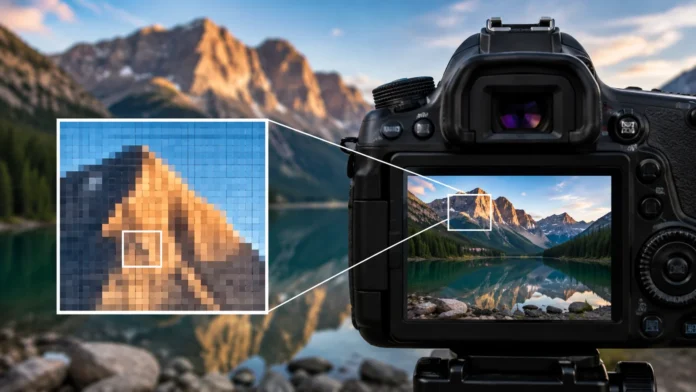
A pixel is a tiny unit of digital visual information that represents one position within an image or display. Digital images are typically organized as rectangular grids containing rows and columns of these units. Each pixel has information describing how that position should appear, usually including color and brightness values. When thousands or millions of pixels are displayed next to one another, the individual squares become difficult to distinguish at normal viewing distance. Our eyes instead perceive continuous shapes, photographs, text, and colors. This grid-based structure is fundamental to most digital photography, computer graphics, smartphone displays, televisions, and web imagery.
The word “pixel” is derived from “picture element,” although the shortened form has become the standard term in computing and digital imaging. A pixel does not normally represent an entire object or meaningful feature by itself. One pixel might contain a shade of blue from the sky, part of a person’s skin tone, or one small section of a letter. Meaning appears when large groups of neighboring pixels form recognizable patterns. This is similar to how individual tiles in a mosaic may look simple when viewed closely but create a detailed picture from farther away. Digital imagery works through the same broad visual principle.
In an image file, pixels are represented as numerical data rather than literal physical squares. The file stores values describing what color each image location should have, along with additional information needed by the format. When software opens the image, the computer interprets those values and instructs a display to reproduce the picture. The exact process depends on the image format, color space, compression method, and display technology. Some formats preserve pixel information more directly, while others compress data to reduce file size. Regardless of the format, the visible image eventually becomes a grid of colored points on the display.
A pixel on a digital display is a physical or electronically controlled picture element capable of producing visible light or controlling how light passes through the panel. Depending on the technology, one display pixel may contain smaller components called subpixels that contribute different color channels. By varying the intensity of these components, the screen can reproduce an enormous range of colors. A photograph’s image pixels and a monitor’s physical pixels are related but are not exactly the same concept. The image provides digital information, while the display provides physical elements that present that information to your eyes.
Pixels also influence how smoothly curved lines and diagonal edges appear. Since a raster image is built on a rectangular grid, curves must be approximated using many small square positions. At low resolution, these edges may appear visibly stair-stepped or blocky, an effect often called pixelation or aliasing. Increasing resolution makes each visible step smaller and therefore less noticeable. Anti-aliasing techniques can also blend edge colors to create smoother-looking shapes. This explains why the same logo can look rough at a tiny resolution but exceptionally smooth when rendered with enough pixels.
How Pixels Create Digital Images
A digital photograph can be imagined as a giant table containing rows and columns, with every cell representing one pixel. If an image measures 3000 pixels wide by 2000 pixels high, it contains six million pixel positions. Each one contributes a tiny portion of the final picture. Areas containing simple backgrounds may use many neighboring pixels with similar colors, while detailed areas contain rapid changes in color and brightness. When displayed at normal size, the brain combines all these individual values into one continuous-looking scene. This is why individual pixels are usually invisible unless you zoom in substantially or view a low-resolution image very closely.
Color pixels are commonly represented using combinations of red, green, and blue values, often called RGB. Different amounts of these three channels can produce many visible colors. A pixel with strong red and green components but little blue can appear yellowish, while approximately equal high values can appear white. Very low values across all three channels produce dark colors approaching black. The number of possible values depends on color depth, which determines how many distinct shades each channel can represent. Modern digital images commonly support millions of possible colors, allowing photographs to reproduce subtle gradients and realistic detail.
Grayscale images work differently because each pixel mainly needs to represent brightness rather than a combination of color channels. A dark pixel receives a low brightness value, while a light pixel receives a higher one. Intermediate values produce different shades of gray. Black-and-white or binary imagery can reduce the possibilities even further, representing each position using only two states. These simpler formats can be useful for documents, scanning, masks, technical images, or specialized applications. The concept of a pixel remains the same regardless of how much information is stored at each position.
Image-editing software allows users to modify pixels directly or indirectly. Increasing brightness changes pixel values throughout selected areas, while color correction adjusts the relationship between channels. Cropping removes outer rows and columns, reducing image dimensions. Resizing may create new pixels or remove existing ones through mathematical interpolation. Filters can analyze neighboring pixels and calculate new values to sharpen, blur, reduce noise, or create artistic effects. Although editing tools appear visual and intuitive, nearly every adjustment ultimately changes numerical pixel information behind the interface.
Compression also affects how pixel data is stored. Uncompressed images can require large amounts of storage because information for every pixel must be preserved. Lossless compression reduces file size while allowing the original pixel information to be reconstructed accurately. Lossy compression can reduce files much further by discarding or simplifying visual information that may be less noticeable to human viewers. Strong lossy compression can eventually create visible artifacts, blurred detail, or blocky areas. Image quality therefore depends not only on the number of pixels but also on how accurately their information is stored and reproduced.
How Big Is a Pixel?
A pixel does not have one universal physical size. In a digital image file, a pixel is essentially an abstract position within a grid and has no fixed measurement in inches, millimeters, or centimeters by itself. Its physical appearance depends on where and how the image is displayed or printed. A 1000-pixel-wide photograph could appear only a few centimeters wide on one screen or fill a much larger display on another. The underlying image still contains 1000 horizontal pixels. This is why asking “How big is one pixel?” requires additional information about the display, print dimensions, or pixel density.
On a physical screen, pixel size depends mainly on the panel’s resolution and physical dimensions. Two displays can both have a resolution of 1920 × 1080 while using very different screen sizes. On the smaller display, the pixels must be packed more closely together, making each one physically smaller. On the larger display, the same number of pixels is spread across a larger area. This difference affects sharpness at a given viewing distance. A small high-resolution smartphone can therefore have a much greater pixel density than a large television even though the television has physically more screen area.
Pixel pitch is one way manufacturers can describe physical spacing between pixels. It generally refers to the distance from the center of one pixel to the center of the next, usually measured in millimeters. Smaller pixel pitch means pixels are packed more densely, which can support finer visible detail when other factors remain equal. Large LED displays designed for viewing from far away can use comparatively large pixel pitches because viewers are not standing close enough to notice individual elements. Computer monitors and smartphones require much smaller spacing because users view them from shorter distances.
Viewing distance strongly influences whether pixel size matters visually. A large outdoor digital billboard can have visible individual light elements when viewed from a few feet away, yet appear smooth and detailed from across a street. A television follows the same principle on a smaller scale. At sufficient distance, your eyes cannot easily distinguish individual pixels and instead perceive a continuous image. This is why screen-resolution recommendations often depend on both display size and typical viewing distance. More pixels provide value when the viewer is close enough to perceive the additional detail.
Physical pixel size also differs across display technologies. LCD, OLED, microLED, projection systems, and large direct-view LED displays create images using different physical structures. Their subpixel arrangements and light-producing mechanisms may also differ, meaning two screens with the same advertised resolution do not necessarily have identical pixel shapes or visual characteristics. Manufacturers optimize these structures according to brightness, power efficiency, manufacturing constraints, color performance, and intended viewing conditions. The concept of a pixel remains useful across technologies, but its exact physical implementation can vary considerably.
Pixel Resolution, PPI and DPI Explained
Resolution usually refers to the amount of detail represented by an image or display, although the term is used in several related ways. Digital image dimensions are commonly written as width × height in pixels, such as 1920 × 1080 or 3840 × 2160. Multiplying those numbers gives the total number of pixels. A 1920 × 1080 image contains slightly more than two million pixels, while a 3840 × 2160 image contains more than eight million. Higher resolution provides more pixel positions for representing detail. However, the visible improvement depends on display size, content quality, viewing distance, and whether the source material actually contains that additional detail.
PPI stands for pixels per inch and describes pixel density when relating digital pixels to physical dimensions. A display with higher PPI packs more pixels into each inch of screen space. Smartphones often have relatively high pixel density because they combine high resolutions with small physical displays. Desktop monitors may have lower PPI because the same or similar resolutions are distributed across larger panels. Higher density can make text and fine graphics appear smoother, especially at close viewing distances. Operating systems may use interface scaling so buttons and text remain comfortably sized despite increasingly dense screens.
DPI stands for dots per inch and is most properly associated with printing rather than digital display pixels. Printers create images by placing tiny dots of ink, toner, or another material onto a physical surface. Multiple printer dots may be used to reproduce one image pixel or color region, so DPI and PPI should not automatically be treated as interchangeable measurements. In casual conversation, people sometimes say DPI when referring to digital image density, which creates confusion. For screen and image pixel density, PPI is usually the more accurate term. For printer output capability, DPI is more appropriate.
Print resolution connects digital pixel dimensions with the desired physical print size. Suppose an image is 3000 pixels wide and you want to print it at 10 inches wide. Dividing 3000 by 10 gives 300 pixels per inch. The same image printed at 20 inches wide would provide only 150 pixels per inch because the available pixels are spread across a larger physical area. Whether that resolution looks acceptable depends on viewing distance, subject matter, printing method, and quality expectations. Large posters can often use lower pixel density because people typically view them from farther away.
Screen resolution should also be distinguished from the resolution of the media being displayed. A 4K television contains enough physical pixels to show 4K content, but playing a low-resolution video does not magically create all the original detail that was never captured. Upscaling algorithms can estimate additional information and make the result appear smoother, yet they cannot fully reproduce genuine missing detail. Similarly, displaying a high-resolution photograph on a lower-resolution screen requires the software to reduce or resample its pixel information. The final visible quality therefore depends on both the source resolution and the display’s capabilities.
Megapixels and Camera Pixels
A megapixel represents approximately one million pixels, and camera resolution is commonly described using this unit. A 12-megapixel camera produces images containing roughly twelve million pixel positions, although exact dimensions vary according to sensor format and image settings. Manufacturers often highlight megapixel counts because the number provides an easy way to compare image dimensions. More megapixels can capture finer detail when the lens, sensor, processing, lighting, and shooting conditions are capable of supporting it. However, megapixel count by itself does not determine overall camera quality. A higher number can be useful, but it is only one part of the imaging system.
Digital camera sensors contain millions of light-sensitive photosites that collect light during exposure. The relationship between these sensor elements and final image pixels can involve additional processing, color filters, combining techniques, and computational photography. A smartphone camera may therefore produce an image with a particular megapixel count even though the sensor and processing pipeline perform complex operations before saving the final file. Modern cameras can combine information from multiple exposures to improve dynamic range or reduce noise. This makes camera imaging more sophisticated than simply assigning one untouched sensor reading to each final pixel.
Pixel or photosite size on a camera sensor can influence light-gathering performance. When sensor dimensions remain similar, increasing the number of photosites generally requires making them smaller. Smaller light-sensitive elements may collect fewer photons individually under the same conditions, which can make low-light performance more challenging. Manufacturers use improved sensor designs, image processing, noise reduction, and pixel-binning techniques to manage these tradeoffs. Larger pixels are therefore not automatically better in every situation, just as more megapixels are not automatically better. Camera performance depends on how the full imaging system balances resolution, sensitivity, optics, and processing.
High-megapixel images provide several practical advantages. Photographers can crop more aggressively while retaining useful resolution, and large prints may preserve finer detail. Product photography, landscapes, architecture, and studio work can benefit from higher image dimensions when the scene and lens provide sufficient detail. The tradeoff is larger file sizes, greater storage use, more processing demand, and potentially slower workflows. Social media and ordinary phone-screen viewing often require far fewer pixels than modern cameras capture. The ideal resolution therefore depends on what the image will eventually be used for.
Low-light photography demonstrates why pixel count alone is an incomplete measure of image quality. A lower-resolution camera with a large sensor, excellent lens, and strong processing can outperform a higher-megapixel camera with a tiny sensor under difficult lighting. Autofocus, stabilization, dynamic range, color accuracy, lens sharpness, and computational processing can all matter as much as raw pixel count. Smartphone manufacturers increasingly use software to combine exposures and optimize images automatically. When comparing cameras, users should therefore evaluate actual image quality and intended use rather than choosing solely according to the largest megapixel number printed on the specifications page.
Pixels on Screens and What Subpixels Do
A display pixel generally represents one addressable picture element on the screen, but that element is often constructed from smaller components called subpixels. Many displays use red, green, and blue subpixels positioned close together. By adjusting how strongly each component contributes light, the display creates the color perceived for that pixel. If the red component is strong while green and blue remain low, the pixel appears red. Combining red and green can create yellow, while high output from all three can approach white. This RGB approach allows screens to reproduce millions or even billions of color combinations depending on hardware and signal precision.
Subpixel arrangements are not identical across every display. Some panels use conventional red-green-blue stripes, while others employ alternative layouts designed around manufacturing, brightness, longevity, or efficiency requirements. These differences can influence text rendering and microscopic appearance even when two panels have the same nominal resolution. Software may use knowledge of subpixel structure to make edges appear smoother, particularly when rendering text. Most users never notice individual subpixels during normal viewing because they are extremely small. Magnifying a modern screen, however, can reveal the colored structure forming each visible pixel.
LCD displays create images by controlling how light from a backlight passes through liquid-crystal structures and color filters. OLED displays work differently because individual subpixels produce their own light, allowing dark areas to be created by reducing or turning off emission directly. These technologies can therefore have different contrast characteristics, power behavior, brightness capabilities, and pixel structures. Both still present images through millions of addressable pixel positions. The word pixel describes the picture unit rather than requiring one specific physical mechanism. This is why many very different display technologies can share common resolution specifications.
Dead and stuck pixels are hardware defects users sometimes encounter on screens. A dead pixel may remain dark because it no longer responds properly, while a stuck pixel may remain fixed at one color or brightness. Since modern displays contain millions of pixels, a single defective one can be surprisingly noticeable when it contrasts strongly with surrounding content. Manufacturers may have different policies regarding how many defective pixels qualify a panel for replacement. Software cannot usually repair a truly failed physical pixel, although some temporary display problems may look similar. Pixel defects illustrate that display pixels are real hardware elements, not merely abstract image data.
Modern high-density screens make individual pixels extremely difficult to see at normal viewing distances. This allows text, photographs, and graphics to appear smooth even though everything is still constructed from a rectangular grid. As pixel density rises beyond what the eye can distinguish under typical conditions, other display qualities become increasingly important. Contrast, brightness, color accuracy, refresh rate, viewing angle, motion handling, and high dynamic range can affect perceived quality as much as resolution. More pixels remain valuable for certain applications, but resolution is only one dimension of a good display.
Real-World Pixel Examples
A smartphone screen provides one of the easiest real-world examples of pixels. Modern phones contain millions of tightly packed display pixels, allowing icons, text, photographs, and videos to appear exceptionally smooth despite the small physical screen. When you zoom deeply into a screenshot, however, you can eventually see the square pixel structure that forms letters and graphics. The screenshot contains digital image pixels corresponding to the screen content at the moment it was captured. Because phone displays often have high pixel density, individual elements remain almost invisible during normal use. This dense pixel arrangement contributes significantly to the sharp appearance people associate with modern smartphones.
Digital photographs provide another familiar example. A 4000 × 3000 photograph contains twelve million image pixels arranged across its width and height. Zooming into the photograph eventually reveals the individual squares because the software enlarges each pixel enough for your eyes to distinguish it. At normal size, those same pixels blend together into smooth surfaces and detailed textures. Cropping removes some of the available pixels, reducing the final dimensions. If too much of the image is removed and the remaining section is enlarged heavily, visible pixelation can begin to appear.
Televisions use millions of display pixels to create moving images. A Full HD television commonly has 1920 × 1080 pixel positions, while a 4K UHD display commonly uses 3840 × 2160. This means 4K provides four times as many total pixel positions as 1080p. The extra resolution can reveal finer detail when screen size, viewing distance, and source quality make that detail visible. Streaming a 4K program also requires enough network bandwidth and a source actually delivered at suitable quality. Simply owning a high-resolution display does not guarantee every program will look equally detailed.
Website images are another important pixel example because web designers balance dimensions with loading speed. A photograph that is 5000 pixels wide may contain far more data than necessary if it will appear only 600 pixels wide on a webpage. Serving unnecessarily large images can waste bandwidth and make pages slower, especially for mobile users. Modern websites often provide several image sizes so browsers can choose an appropriate version for the device. High-density screens may still benefit from larger source images than their CSS display dimensions suggest. Optimizing pixels therefore plays an important role in web performance as well as visual quality.
Digital art and pixel art illustrate two opposite approaches to the same basic technology. Most modern graphics attempt to make individual pixels invisible by using high resolution and smooth rendering. Pixel art deliberately embraces visible block-like pixels as part of its visual style. Artists carefully place color blocks to create characters, environments, and objects with a distinctive retro appearance. Early video games developed similar aesthetics partly because hardware could display only limited resolutions and colors. What began as a technical limitation eventually became an intentional artistic language that remains popular even on modern high-resolution devices.
How Pixel Count Affects Image Quality
Higher pixel counts can provide greater spatial detail because more individual positions are available to represent the image. A landscape photograph with millions of pixels can preserve smaller textures and distant objects more clearly than a very low-resolution version of the same scene. This additional information becomes useful when viewing images on large displays, cropping them, or producing detailed prints. However, the source must contain meaningful detail to benefit from the extra pixels. Enlarging a blurry low-resolution photograph to huge dimensions does not recreate genuine texture that the camera never captured. Pixel quantity is valuable when it represents real visual information.
Lens quality strongly influences how much useful detail a camera can deliver to its pixels. A sensor may contain fifty million pixel positions, but a soft or poorly focused lens can prevent those pixels from recording sharp information. Camera shake and subject movement can create similar limitations. This explains why technical image quality cannot be judged from pixel count alone. Optics, focus, stabilization, lighting, and processing all contribute to whether resolution translates into visible detail. Professional photographers therefore consider the complete imaging system rather than assuming more megapixels automatically guarantee sharper photographs.
Compression can reduce visible quality even when pixel dimensions remain unchanged. Two images might both measure 4000 × 3000 pixels but look significantly different if one has been compressed aggressively. Lossy compression can simplify textures, introduce block artifacts, and blur subtle color transitions to reduce file size. The pixel count remains twelve million, yet the information stored within those pixels is less accurate. This demonstrates the difference between resolution and overall quality. Resolution describes how many pixel positions exist, while quality also depends on how faithfully those positions represent the original scene.
Viewing conditions determine how much resolution a person can actually perceive. A high-resolution image displayed as a tiny thumbnail may look nearly identical to a lower-resolution version because the extra detail is being reduced to fit the small display area. Similarly, a viewer sitting far from a television may not distinguish the difference between two high-resolution formats as easily as someone sitting closer. Print viewing follows the same principle. Large posters intended for distant viewing can often use lower pixel density than small prints inspected closely. Useful resolution therefore depends on the relationship between image dimensions, physical size, and viewing distance.
The best approach is to choose enough pixels for the intended use rather than maximizing resolution without purpose. Social media posts, thumbnails, phone screens, large prints, professional retouching, and billboard advertising all have different requirements. Higher resolution creates larger files and greater storage and processing demands, which can become unnecessary when the final output is small. On the other hand, starting with enough resolution provides valuable flexibility for cropping and future uses. Understanding pixels helps users choose sensible image sizes instead of relying on the assumption that the biggest number is always best.
Conclusion
A pixel is the basic picture element used to create most digital images and screen displays. Millions of pixels arranged in rows and columns work together to form photographs, graphics, text, videos, and interface elements. Each image pixel stores visual information such as color and brightness, while physical display pixels reproduce that information through screen technology. Individual pixels are usually too small to notice during normal viewing, allowing the eye to perceive continuous imagery rather than a visible grid. Their simple structure forms the foundation of nearly every modern digital visual experience.
Pixel size is not fixed because digital image pixels have no universal physical dimensions. The same 1920-pixel-wide image can appear small on one device and enormous on another. Physical screen pixel size depends on display dimensions, resolution, pixel pitch, and density. A smaller screen containing many pixels packs those elements more closely together, often producing sharper-looking text and graphics at close range. Viewing distance also determines whether individual pixels can be perceived. Large displays can therefore use physically larger pixels when viewers typically stand much farther away.
Resolution, PPI, DPI, and megapixels describe related but different concepts. Image resolution commonly refers to pixel dimensions, while PPI describes how densely pixels are arranged across a physical inch. DPI is more closely associated with printer dots and should not automatically be treated as the same measurement as screen pixel density. Megapixels describe total image pixel count in millions and are widely used for camera specifications. Understanding these distinctions makes it easier to compare displays, cameras, images, and printed output without confusing specifications that measure different things.
More pixels can provide additional detail, but pixel count alone does not determine image quality. Cameras also depend on sensor design, photosite behavior, lens quality, focus, lighting, stabilization, and image processing. Digital files can lose quality through excessive compression even when their dimensions remain unchanged. Displays introduce additional factors such as contrast, color accuracy, brightness, refresh rate, and panel technology. A lower-resolution image produced and displayed well can sometimes look better than a higher-resolution image affected by blur, noise, poor compression, or weak processing.
Ultimately, pixels are simple units that make complex digital imagery possible. Understanding what a pixel is helps explain why images become blocky when enlarged, why high-density screens look sharp, why camera megapixels matter only to a point, and why resolution should be matched with physical size and viewing conditions. The goal is rarely to obtain the highest pixel count available simply because the number is larger. Instead, useful resolution should match how the image or display will actually be used. Once you understand pixels, many common specifications involving cameras, monitors, televisions, printing, websites, and digital images become much easier to interpret.
Frequently Asked Questions About Pixels
What is a pixel in simple terms?
A pixel is one tiny picture element that contributes color and brightness to a digital image or screen. Large numbers of pixels arranged together create the photographs, graphics, text, and videos you see on digital devices.
What size is one pixel?
A digital image pixel has no fixed physical size. Its visible size depends on factors such as screen dimensions, resolution, pixel density, print size, and how the image is displayed.
What does 1920 × 1080 pixels mean?
It means the image or display contains 1,920 pixel positions horizontally and 1,080 vertically. Multiplying those values gives roughly 2.07 million total pixels.
Is one megapixel equal to one million pixels?
Yes, one megapixel represents approximately one million pixels. A 12-megapixel image therefore contains roughly twelve million pixel positions, although the exact width and height depend on the image’s aspect ratio.
Does more pixels always mean better image quality?
No. More pixels can provide greater detail, but overall quality also depends on factors such as lenses, sensor performance, focus, lighting, image processing, compression, display quality, and viewing conditions.