
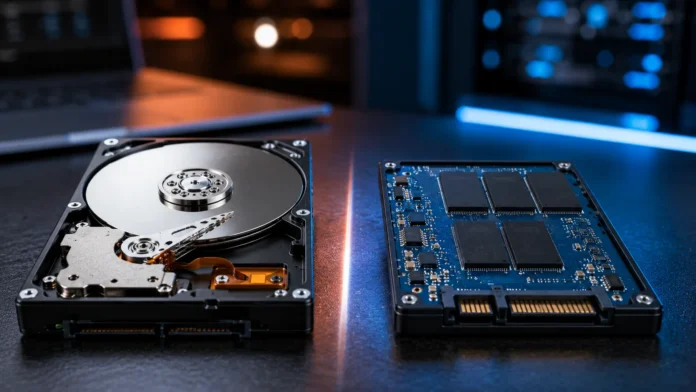

HDD vs SSD: Which Storage Is Better for You?
Choosing between an HDD and an SSD is one of the most important storage decisions when buying or upgrading a computer. HDD stands for Hard Disk Drive, while SSD stands for Solid-State Drive, and both technologies store operating systems, applications, documents, photos, videos, games, and other digital files. The major difference is how they store and retrieve that information. HDDs use spinning magnetic disks and moving mechanical components, while SSDs store information electronically in flash memory without moving parts. This design difference affects speed, durability, noise, power consumption, physical size, capacity, and price, making each storage technology better suited to particular situations.
For most modern computers, SSDs provide the strongest everyday performance because they load operating systems, applications, and files significantly faster than mechanical hard drives. HDDs remain valuable when users need several terabytes of affordable storage for backups, media collections, archives, or other large datasets. Many desktop users therefore combine the technologies by using a fast SSD for Windows, applications, and frequently accessed files while keeping an HDD for bulk storage. The best choice depends on your budget, capacity requirements, workload, portability needs, and performance expectations. This guide compares HDD vs SSD storage in detail so you can determine which option makes the most sense for your computer.
What Is an HDD?
A Hard Disk Drive is a data-storage device that stores information magnetically on one or more rotating disks called platters. Inside the drive, a motor spins these platters at high speed while a tiny read/write head moves across their surfaces to locate and modify information. Data remains stored even after the computer is powered off, making an HDD a form of non-volatile storage. Hard drives have been used in personal computers and enterprise systems for decades because they provide large storage capacities at relatively low cost. Modern HDDs can hold several terabytes of information, making them especially useful for files that require considerable space but do not need extremely fast access.
Mechanical movement is central to how an HDD operates. When the computer requests a file, the drive must position the read/write head over the correct area of a spinning platter before the requested information can be transferred. This physical movement introduces latency that does not exist in solid-state storage. Sequential files stored close together can be transferred relatively efficiently, while workloads involving thousands of small files scattered across the disk are much slower. Operating systems and modern applications frequently perform many small random reads and writes, which is one reason computers feel dramatically more responsive when an HDD is replaced with an SSD.
Hard drives are available in several physical formats, with 3.5-inch models commonly used in desktop computers and larger storage systems. Smaller 2.5-inch HDDs have historically appeared in laptops, although modern notebooks increasingly use SSDs because solid-state storage is thinner, faster, and more resistant to movement. Hard drives generally connect through interfaces such as SATA in consumer computers. Enterprise environments can use additional drive technologies and specialized interfaces depending on performance and reliability requirements. Regardless of physical format, conventional HDDs all depend on moving platters and heads to store and retrieve information.
Storage capacity remains one of the strongest advantages of HDD technology. Users who need several terabytes for video libraries, photography archives, surveillance recordings, backups, or large project files can often purchase hard drives at a substantially lower cost per gigabyte than equivalent solid-state storage. This makes HDDs particularly attractive for secondary storage. A computer may not need high-speed access to every old photo or backup file, so paying premium SSD prices for infrequently accessed information may provide little practical benefit. Hard drives can therefore remain economical even when the primary system drive is solid-state.
The mechanical design also creates HDD weaknesses. Moving components can produce vibration and audible noise, consume additional power, and become vulnerable to physical shock. Dropping a laptop while its hard drive is operating can potentially damage internal components because the read/write heads operate extremely close to the platters. Bearings and motors can also wear over time. Modern HDDs can still provide years of reliable service when handled correctly, but they contain more physically moving parts that can fail than an SSD. These characteristics make hard drives particularly suited to stationary, high-capacity storage rather than situations where maximum speed or ruggedness is required.
What Is an SSD?
A Solid-State Drive stores data electronically using NAND flash memory rather than spinning magnetic platters. Because there are no mechanical heads that need to move into position, an SSD can access information much more quickly than a traditional hard drive. This difference is especially noticeable when starting a computer, opening applications, loading games, searching files, or performing tasks that require many small reads and writes. SSDs are also silent because they contain no spinning motor or moving read/write mechanism. These advantages have made solid-state storage the standard primary drive in most modern laptops, desktops, and high-performance computers.
An SSD contains flash-memory chips, a controller, firmware, and supporting circuitry responsible for storing and managing data. The controller determines where information should be written and helps distribute writes across available flash cells. Unlike an HDD, an SSD does not need to wait for a physical disk to rotate before reaching another location. This allows extremely low access latency. Even a relatively basic SATA SSD can make an older computer feel considerably faster when replacing a mechanical system drive. More advanced PCIe and NVMe SSDs provide much higher sequential transfer speeds than SATA models.
SSD designs come in several physical formats. A traditional 2.5-inch SATA SSD fits into many systems that previously used 2.5-inch hard drives and connects using familiar SATA cabling. M.2 SSDs are much smaller circuit-board-style drives that install directly onto compatible motherboards. Some M.2 drives use SATA internally, while higher-performance models use PCI Express and the NVMe protocol. Users therefore should not assume every M.2 drive automatically provides the same performance. Interface support, PCIe generation, controller design, NAND type, and workload all influence actual SSD speed.
Flash memory has a finite number of program and erase cycles, meaning cells gradually wear as information is repeatedly written. Modern SSD controllers manage this limitation using techniques such as wear leveling, over-provisioning, error correction, and intelligent write management. Consumer drives are commonly rated using endurance measures that estimate how much data can be written during their expected life. Ordinary users usually write far less data than these ratings allow. Consequently, SSD endurance is generally more than sufficient for normal operating-system, gaming, office, and everyday consumer workloads.
The primary disadvantages of SSD storage are price and, in some situations, large-capacity economics. SSD prices have fallen dramatically over time, making common capacities much more affordable, but very large solid-state drives can still cost considerably more than hard drives with comparable capacity. Data recovery after certain electronic failures can also be more complicated than recovery from some mechanical-drive failures. SSDs therefore should not be treated as automatically immune to data loss. Important information requires backups regardless of whether it is stored on flash memory or magnetic disks.
HDD vs SSD: Speed and Everyday Performance
Speed is the most noticeable difference between HDD and SSD storage for ordinary computer users. A mechanical hard drive must physically locate requested data, while an SSD can electronically access flash-memory locations with much lower latency. This means operating systems stored on SSDs usually start much faster than those installed on HDDs. Login screens appear sooner, applications launch more quickly, and background services finish loading faster. Even users who do not perform professional workloads can immediately notice the improvement. Replacing an HDD with an SSD is therefore one of the most effective upgrades for making an older computer feel more responsive.
Application loading provides another clear example. Programs frequently consist of thousands of individual files that need to be read from storage when the software starts. Hard drives struggle with this type of random access because the drive head must move repeatedly between different physical locations. SSDs can access those scattered files far more quickly because no mechanical positioning is required. Web browsers, office applications, creative software, programming tools, and games can all benefit. The improvement is often more noticeable than simply comparing advertised sequential transfer-speed numbers because everyday computing depends heavily on access latency and small-file performance.
Sequential transfers occur when large blocks of data are read or written continuously, such as copying a large video file. Hard drives perform better in this workload than they do with random access, although SSDs still generally provide higher speeds. SATA SSD performance is limited partly by the SATA interface, while NVMe drives can take advantage of much greater PCIe bandwidth. High-end SSDs can therefore transfer large files dramatically faster than mechanical disks. Video editors, content creators, developers, and professionals handling large datasets can save meaningful time when workloads repeatedly move substantial files.
Multitasking also benefits from solid-state storage because several applications may request data simultaneously. An HDD’s mechanical head can read only one physical disk location at a given moment, so competing requests increase delays. An SSD can service multiple operations much more efficiently. This becomes noticeable when Windows performs updates or antivirus scans while the user opens applications and copies files. On an HDD-based system, these overlapping activities can make the entire computer feel sluggish. SSD systems generally remain much more responsive under similar storage activity, assuming sufficient CPU and memory resources are available.
However, storage speed does not accelerate every task equally. A program limited primarily by processor performance will not necessarily become dramatically faster after moving from one already-fast SSD to a faster NVMe model. Internet downloads remain limited by the network connection when storage is not the bottleneck. Gaming frame rates are also determined mainly by the graphics processor and CPU rather than storage speed. SSDs improve responsiveness and loading, but they do not magically make every component faster. Understanding where storage matters helps users choose the right level of performance without overspending on specifications that their workloads cannot exploit.
HDD vs SSD: Durability, Lifespan and Reliability
SSDs generally have an advantage in physical durability because they contain no spinning platters or moving read/write heads. A laptop with an SSD can tolerate ordinary movement and vibration more safely than one using a mechanical hard drive. This does not mean an SSD cannot be damaged, but physical shocks are less likely to cause the same type of head or platter failure found in HDDs. Portable devices benefit especially from this difference. Students, travelers, field workers, and anyone frequently carrying a laptop usually gain both performance and practical durability from solid-state storage.
HDDs can remain reliable for many years when installed in stable environments, but mechanical components introduce additional failure possibilities. Motors, bearings, heads, and platters must continue operating within very tight tolerances. A hard drive can develop bad sectors, unusual noises, slow reads, or complete mechanical failure. Some failures develop gradually, allowing monitoring tools to provide warning signs, while others happen suddenly. Hard drives should therefore never be considered permanent archives without backups. A large drive sitting safely inside a desktop is less exposed to shock than one carried frequently in a portable computer, but age and mechanical wear still matter.
SSD reliability involves different failure mechanisms. Flash cells wear gradually as they undergo repeated program and erase cycles, while controllers and other electronic components can also fail. Drive manufacturers commonly provide endurance ratings that indicate expected write capacity. Most ordinary consumers do not approach these limits because everyday web browsing, gaming, document editing, and multimedia use generate moderate write volumes. Professional workloads involving databases, heavy video processing, or large continuous writes may require higher-endurance drives. Choosing an SSD designed for the workload helps ensure appropriate longevity.
Neither technology provides guaranteed protection from unexpected failure. An SSD can stop working because of controller problems, firmware defects, power issues, or component failure, while an HDD can fail mechanically or develop unreadable areas. Reliability therefore should be treated separately from backup. A storage device can be highly reliable while still eventually failing. Important documents, family photos, business records, and other irreplaceable data should exist in multiple locations. Backups protect users from hardware failure, accidental deletion, malware, theft, and many other risks that drive specifications alone cannot eliminate.
Long-term offline storage also requires careful consideration. Hard drives have historically been popular for archives because large capacities are affordable and data can remain stored without continuous power. SSDs can also retain data without power, but long-term retention depends on flash condition, temperature, age, and other factors. Neither should be assumed to preserve valuable information indefinitely while sitting untouched for decades. Important archives should be checked, refreshed, and copied periodically. For critical information, multiple storage media or locations provide stronger protection than relying exclusively on either HDD or SSD technology.
HDD vs SSD: Capacity and Cost
HDDs remain highly competitive when maximum storage capacity for the lowest cost is the main objective. Large hard drives can provide several terabytes at prices that make them practical for backups, video libraries, surveillance footage, photo archives, and bulk business data. The cost per gigabyte usually falls as capacity increases, making one large HDD more economical than several smaller solid-state drives for archival purposes. Users who rarely access older files may gain little from storing everything on expensive high-speed flash memory. This is why mechanical storage continues to have an important role despite SSDs dominating primary system drives.
SSDs have become increasingly affordable at mainstream capacities, making them practical for operating systems, programs, games, and active projects. Smaller SSDs used to be considered premium upgrades, but modern computers commonly ship with solid-state storage as standard. Costs become more noticeable when users need several terabytes. A professional video editor requiring large amounts of fast active storage may justify that premium because time saved during file transfers and editing workflows has business value. A home user storing finished movies or backups may receive much less benefit from paying the same premium.
Capacity planning should consider future needs rather than only current file size. Operating systems, applications, game installations, photos, and project files can expand over time. SSDs also perform best when they have some available free space for internal management and temporary operations. Buying a drive that is almost full immediately can create inconvenience and reduce flexibility. Users should estimate how much storage they need today and leave reasonable room for growth. The exact margin depends on workload and budget, but choosing the smallest technically possible drive often creates unnecessary upgrade pressure later.
Cloud storage can change the amount of local capacity users require. People who keep documents and photographs synchronized online may need less internal storage than users who maintain large offline media libraries. However, cloud services depend on internet connectivity and recurring subscriptions in many cases. They should not automatically replace local backups because account problems, synchronization errors, or connectivity issues can still occur. A balanced strategy can combine an SSD for active local work, cloud services for synchronization, and an HDD for large backups. Different storage layers can address different requirements efficiently.
Cost should also include the value of time. A cheaper HDD may save money initially but cause significantly longer waiting times when used as the main system drive. For a computer used every day, repeated delays can quickly outweigh a modest purchase-price difference. Conversely, paying premium prices for enterprise-grade NVMe performance makes little sense if the drive will only hold rarely viewed family videos. The most economical solution is not always the cheapest device. It is the storage configuration that delivers sufficient performance and capacity for the workload without paying for features that provide little practical benefit.
HDD vs SSD for Gaming and Creative Work
Gaming has increasingly benefited from SSD storage because modern titles contain large textures, audio files, maps, and other assets that must be loaded quickly. Installing games on an SSD can reduce startup times, level-loading screens, and delays when games stream data during play. Open-world titles can benefit particularly because storage is accessed continuously as players move through large environments. Newer game engines increasingly assume that reasonably fast storage is available. An HDD may still run many games, but loading can feel noticeably slower, and certain modern titles are designed with SSD performance in mind.
An SSD generally does not increase average gaming frame rates significantly when the graphics card and processor are already the limiting components. Once the required game data is loaded into memory, frame rendering depends mainly on CPU and GPU performance. Storage can still influence stuttering in games that stream assets dynamically, but users should not expect replacing an HDD with an SSD to turn a weak graphics card into a powerful one. The main gaming advantages are faster loading, quicker installations or updates, and more responsive asset streaming. These improvements can nevertheless have a substantial effect on overall experience.
Game library size creates a capacity challenge because modern games can consume tens or even hundreds of gigabytes each. A smaller SSD can fill quickly when several large titles are installed simultaneously. Gamers with limited budgets may therefore use a large SSD for frequently played games and an HDD for older or rarely played titles. Games can be moved between drives when needed. Another option is purchasing one larger SSD if budget allows. Falling solid-state prices have made all-SSD gaming systems increasingly practical, especially where silence and fast loading matter.
Creative professionals often gain even more from SSDs because video editing, photography, audio production, animation, and software development can involve large numbers of files and repeated transfers. Editing high-resolution video from a fast NVMe SSD can improve timeline responsiveness and reduce waiting during cache or media operations. Photographers can import and preview large image collections more efficiently. Developers working with huge projects can experience faster builds when many small files are accessed. Storage performance therefore becomes a productivity factor rather than merely a convenience in professional environments.
HDDs remain useful for finished creative projects and long-term source archives. A filmmaker may edit current footage from a high-speed SSD while moving completed projects onto large hard drives afterward. This workflow combines fast active storage with economical archive capacity. Multiple backup copies should still exist because creative work can be extremely valuable. Professionals may also use network-attached storage systems containing several HDDs for centralized capacity while keeping local SSDs for current work. Hybrid storage remains practical because active and archival data have very different performance requirements.
HDD vs SSD for Laptops, Desktops and Backups
Laptops strongly favor SSDs because solid-state storage is lighter, quieter, more energy-efficient, and resistant to ordinary movement. Mechanical hard drives can consume additional battery power because their platters must spin during operation. They also create vibration and can be more vulnerable if the laptop is dropped while running. M.2 SSDs require very little internal space, allowing manufacturers to build thinner notebooks with larger batteries or other components. For these reasons, an SSD should usually be considered the default internal storage choice for a modern laptop unless unusual capacity requirements dictate otherwise.
Desktop computers provide more flexibility because they have additional physical space for multiple drives. A common configuration uses an NVMe SSD as the boot drive and one or more HDDs for bulk storage. The operating system, applications, and games benefit from solid-state performance, while videos, backups, and archives can remain on high-capacity mechanical drives. This hybrid setup offers an excellent balance for users who need several terabytes without paying for equivalent SSD capacity. Desktop cases also protect HDDs from the movement and shock that portable devices experience.
Workstations used for professional applications can use multiple SSD tiers. A fast NVMe drive may contain the operating system and software, while another high-capacity SSD holds active project files or scratch data. HDD arrays or network storage can then preserve finished work and backups. Separating workloads can improve both organization and performance. Professionals should base the configuration on application behavior rather than buying drives solely according to benchmark rankings. Some workloads benefit tremendously from high sequential bandwidth, while others depend more on latency or available capacity.
HDDs remain strong choices for local backup because backups usually prioritize capacity and cost rather than application-launch speed. An external multi-terabyte hard drive can store complete computer backups at a reasonable price. Users can connect it according to a backup schedule and disconnect it afterward to reduce exposure to certain malware or accidental deletion scenarios. Portable SSDs are faster and more resistant to movement, making them useful when backups need to be transported frequently. The right backup medium depends on data volume, transfer frequency, portability, and budget.
A robust backup strategy should not rely on one drive regardless of technology. If the only backup exists on an external HDD sitting beside the computer, theft, fire, flooding, or electrical damage could affect both copies. If a single portable SSD contains all important data, losing the drive creates the same problem. Critical information should exist in more than one location. Local HDDs or SSDs can provide fast recovery, while another off-site or cloud copy protects against physical disasters. The storage technology matters, but backup redundancy matters more.
SATA SSD vs NVMe SSD: Which One Do You Need?
SATA SSDs were one of the first widely adopted replacements for mechanical hard drives because they used an interface already available in most computers. A 2.5-inch SATA SSD can often replace a laptop or desktop hard drive without major system changes. Its maximum transfer speed is constrained by the SATA interface, but it still provides dramatically lower latency than an HDD. For web browsing, office applications, general Windows use, and many games, a SATA SSD remains responsive and capable. Users upgrading an older computer can therefore experience a major performance improvement without needing the latest motherboard technology.
NVMe SSDs communicate through PCI Express rather than the traditional SATA storage interface. This gives them access to substantially greater bandwidth and allows much higher levels of parallel operation. Most consumer NVMe drives use the compact M.2 form factor, although other formats exist. High-end models can achieve sequential transfer rates several times greater than SATA SSDs. Workloads involving large media files, professional applications, software development, or heavy data movement can benefit significantly. Modern gaming PCs also increasingly use NVMe storage because new platforms are designed around faster data access.
The difference between SATA and NVMe is often smaller in ordinary everyday tasks than benchmark charts suggest. Both technologies have extremely low access latency compared with mechanical hard drives, so opening a browser or office document may feel similarly quick. Moving from HDD to any competent SSD creates the biggest perceptual improvement. Moving from SATA SSD to a high-end NVMe model provides a smaller improvement for simple workloads. Users should therefore match storage performance with actual use rather than assuming the highest benchmark score will transform every activity.
Compatibility matters before purchasing an NVMe drive. An M.2 slot can potentially support different electrical interfaces, and not every older computer accepts every M.2 SSD. Motherboards may also limit certain slots to particular PCIe generations or disable other ports when specific M.2 connections are used. Laptops can have restrictions related to physical length, cooling, or firmware. Users should check the computer or motherboard documentation carefully before upgrading. A drive cannot deliver its advertised capability when the system does not support the required interface.
For most new computers, NVMe is the most logical primary SSD choice when pricing is reasonable because it provides excellent performance in a small form factor. SATA SSDs remain valuable for upgrading older hardware or adding additional storage where SATA ports are available. Users storing large archives may still choose HDDs alongside either type. The decision is therefore not simply HDD versus SSD anymore. Modern systems can combine NVMe, SATA SSD, HDD, external storage, and cloud storage according to each dataset’s performance and capacity needs.
How to Choose Between HDD and SSD
Start by determining whether the drive will be your primary system storage or secondary bulk storage. If Windows, macOS, Linux, major applications, or frequently used games will run from the drive, an SSD is usually the stronger choice because everyday responsiveness improves substantially. Mechanical storage can make even a capable CPU and sufficient memory feel slow when applications constantly wait for the disk. For a modern main computer, using an HDD as the only system drive is generally difficult to justify unless the budget is extremely limited. SSD prices at mainstream capacities have made solid-state boot drives accessible to most buyers.
Capacity should be the next consideration. Estimate how much space your operating system, programs, games, photos, videos, and working files currently consume. Then leave additional room for future growth. If your active storage requirements fit comfortably within an affordable SSD, an all-SSD configuration offers excellent simplicity and performance. If you need many terabytes of infrequently accessed information, adding an HDD may reduce cost substantially. Users should avoid purchasing huge amounts of expensive flash storage simply because it is faster when most of those files are only archives.
Consider how often the device moves. Laptops, portable workstations, and external drives carried between locations benefit from the absence of mechanical components in SSDs. A stationary desktop backup drive does not require the same physical shock resistance. Noise can also matter in quiet rooms because HDD motors and head movement may be audible, while SSDs operate silently. Power consumption matters more in portable devices and large server installations than in a single desktop. Environmental and physical considerations can therefore influence the decision alongside benchmark performance.
Workload should determine how much SSD performance you actually need. General office users can be satisfied with an ordinary mainstream SSD, while professional video editors may benefit from a high-end NVMe model. Home backup storage usually does not need premium SSD speed, making HDDs economically attractive. Gamers can prioritize capacity and loading performance, while photographers may combine fast active storage with economical archival drives. Thinking about how data is used produces better decisions than simply labeling one technology universally superior. Storage design is about matching characteristics with requirements.
Finally, consider using both technologies rather than forcing one to handle everything. An SSD can serve as the operating-system and application drive, while an HDD stores large archives, backups, videos, and rarely accessed files. This hybrid approach delivers responsive everyday computing without making bulk storage unnecessarily expensive. Users with larger budgets can move toward all-SSD systems and keep HDDs only for backups. Neither technology must completely replace the other. The best configuration is the one that balances speed, capacity, durability, cost, and backup requirements for your actual workload.
Common HDD and SSD Mistakes to Avoid
One common mistake is buying a large HDD as the only drive in a new performance-oriented computer simply because its capacity looks attractive. The system may have a powerful processor and plenty of memory yet still feel slow during booting, updates, and application launches because storage becomes the bottleneck. A smaller SSD combined with an HDD usually provides a much better experience at a similar overall budget. Capacity is important, but primary-drive responsiveness affects nearly every session. Users should prioritize SSD storage for frequently accessed software before maximizing archival capacity.
Another mistake is assuming an SSD never needs backup because it has no moving parts. Solid-state drives can fail from controller problems, electrical damage, firmware faults, manufacturing defects, or other causes. Accidental file deletion and ransomware also affect both SSDs and HDDs. Reliability does not equal invulnerability. Important files should exist independently from the primary drive. A backup strategy protects information regardless of which storage technology eventually fails.
Users can also overspend on extremely fast NVMe drives without having workloads capable of benefiting from them. Benchmark numbers can make one model look several times faster than a SATA SSD or mainstream NVMe drive, yet opening simple applications may feel almost identical. Professional transfers and heavy workloads can justify high performance, but casual users may gain more from spending the difference on greater storage capacity, additional memory, or another system component. The fastest specification is not automatically the best value. Real workload performance should guide purchasing decisions.
Ignoring drive capacity and free space is another common problem. Users sometimes buy a small SSD and fill it almost immediately with games, media, and temporary files. Managing constant low-storage warnings becomes inconvenient, and some drives benefit from having sufficient free space for internal operations. Planning future requirements can prevent an early replacement. Moving inactive files to an HDD or external storage can also keep the primary SSD focused on active workloads. Storage organization matters almost as much as raw capacity.
Finally, users sometimes treat storage upgrades as substitutes for complete system diagnosis. An SSD can transform a computer limited by an old hard drive, but it cannot solve every performance problem. Insufficient memory, overheating, malware, a slow processor, failing hardware, or poor software configuration can still cause lag. Likewise, replacing a SATA SSD with a faster NVMe model will not fix low gaming frame rates caused by a weak graphics card. Storage should be evaluated as one part of the complete system. Understanding the real bottleneck prevents unnecessary purchases and produces more effective upgrades.
Conclusion
HDDs and SSDs both provide non-volatile storage, but they use fundamentally different technologies. HDDs store information magnetically on spinning platters and use mechanical heads to read and write data. SSDs use flash memory and electronic controllers without moving components. This difference gives SSDs much faster access times, quieter operation, improved resistance to movement, and generally lower power consumption. Hard drives compensate by offering large capacities at a lower cost per gigabyte, making them particularly useful for bulk storage and backups.
For most users, an SSD is the better primary drive. Computers start faster, applications open more quickly, updates complete with less storage-related delay, and the system remains more responsive during multitasking. Gamers benefit from reduced loading times, while creative professionals can gain substantial productivity improvements during file-heavy workflows. NVMe SSDs provide especially high transfer speeds when supported by compatible systems. Even older computers can experience a major improvement by replacing a mechanical boot drive with a basic SATA SSD.
HDDs still have an important role because not every file needs premium performance. Photos, finished videos, backups, old projects, surveillance recordings, and media libraries can require several terabytes of capacity while being accessed only occasionally. Mechanical storage can hold this information economically. Desktop computers and NAS systems are particularly suitable for high-capacity HDDs because the drives remain stationary and can operate in controlled environments. Users who need huge amounts of storage can therefore benefit from combining HDD and SSD technology.
The best storage configuration depends on how your data is used. A laptop should generally favor solid-state storage because speed, battery efficiency, silence, and shock resistance are valuable. A gaming PC benefits from a large SSD for active titles, while an HDD can still hold archives if needed. A creative workstation might use several NVMe drives for active projects and large HDDs for backups. Home users can use an SSD for the operating system and an external HDD for affordable backup. Matching storage type with workload creates better value than choosing one technology for every purpose.
Ultimately, the HDD vs SSD decision does not need to produce one universal winner. Choose an SSD when speed, responsiveness, portability, and silent operation matter most. Choose an HDD when very large capacity at the lowest practical cost is the priority. If your budget permits, using an SSD as your primary storage and an HDD for backups or archives delivers an excellent balance. Whatever option you choose, remember that no drive is permanent. Maintain reliable backups of valuable information so the failure of either an HDD or SSD never becomes the loss of your only copy.
Frequently Asked Questions About HDD vs SSD
Which is better, HDD or SSD?
An SSD is better for most everyday computer use because it provides faster boot times, quicker application loading, lower latency, silent operation, and better resistance to physical movement. HDDs are better when you need large amounts of affordable storage for backups or archives.
Is SSD faster than HDD?
Yes. SSDs access data electronically without waiting for mechanical platters and heads to move, giving them much lower access latency and faster transfer performance. NVMe SSDs can be substantially faster than both HDDs and SATA SSDs in suitable workloads.
Does SSD last longer than HDD?
Either type can last for many years, but they fail through different mechanisms. SSDs have limited flash-write endurance, while HDDs contain mechanical components that can wear or suffer physical damage, so backups remain necessary regardless of drive type.
Is HDD still worth buying?
Yes, especially for high-capacity backups, media libraries, surveillance storage, archives, and other data that does not require extremely fast access. HDDs continue to offer attractive cost per terabyte compared with large SSDs.
Should I use both SSD and HDD in my computer?
Using both can be an excellent option, particularly in desktops. You can keep the operating system, applications, games, and active files on an SSD while storing backups, videos, photos, and large archives on a lower-cost HDD.